New Two Factor Setup Instructions
Why is this change occurring?
As Cyber Security threats continue to rise, Snow College wants to provide a safe computing environment for students, staff, and community members. Two-Factor authentication helps provide a safer computer environment to all users. This extra authentication step helps secure both your account and your data.
If you have any questions or trouble setting up two-factor authentication, please call the Snow College Help Desk at 435-283-7777.
Got Questions? Click here for 2 Factor FAQ
There are two ways to set up two factor authentication at Snow College. You may use text messages (SMS) or an authenticator app (recommended). If you decide to use the authenticator app, please use a computer the first time you login as it will simplify the installation.
Text Message Method:
- Setup your two factor authentication by clicking HERE
- Select SMS for Text messages as the MFA type and follow the on-screen instructions.
Authenticator App Method:
- Download the Microsoft Authenticator App on your phone.
-
Setup your two factor authentication from your computer by clicking
HERE.
The following screen should come up.
Setting up Two factor using the authenticator app:
Enter your Snow College username and password (same as badgerweb)
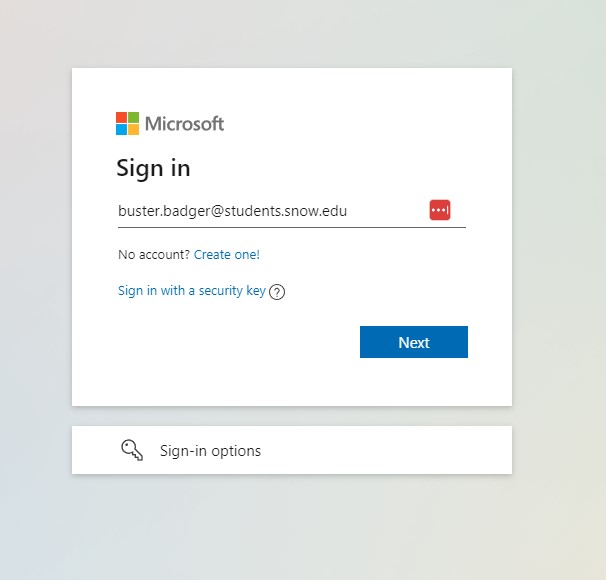
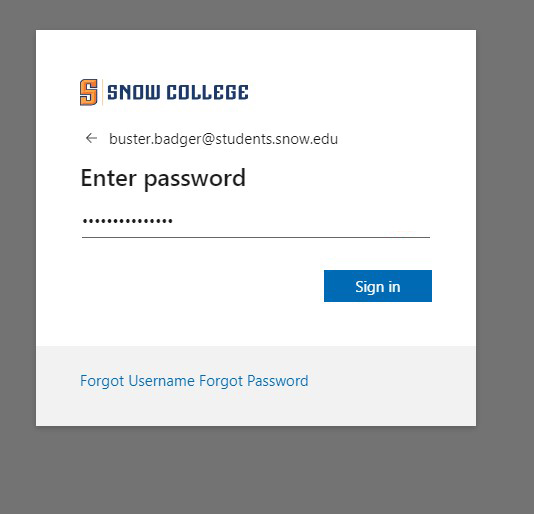
You will be prompted to enter a password.
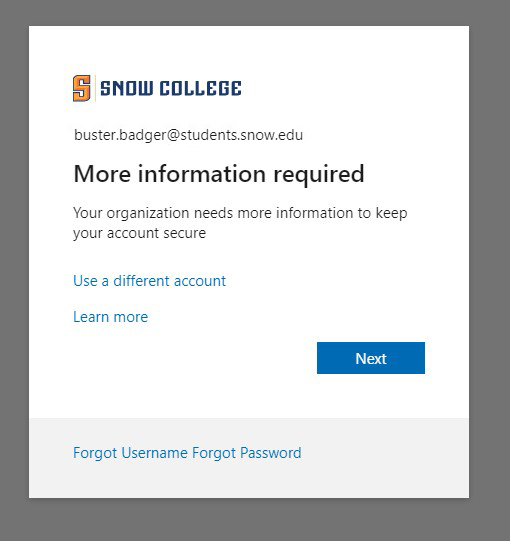
Next you will be asked to setup your two-factor method.
Follow the on-screen instructions.
Step By Step Instructions (Choose One)
Congratulations! You have successfully set up your two factor. You can now close the tab.